November 22nd, 2007
When using tar on Mac OS X, by default it includes all the
extended attributes.
The solution I found was in David Olinsky’s comment at Jim Plush’s blog
For the record, the solution is to set
export COPY_EXTENDED_ATTRIBUTES_DISABLE=true
This worked fine in 10.4 (Tiger). However for 10.5 (Leopard), the option
was renamed. Instead set
export COPYFILE_DISABLE=true
Posted in Apple and Mac OS X, Leopard | Comments Off
November 11th, 2007
There has been a bit of a furore about the translucent menu bar.
The latest item is a flickr photo showing the ITunes menu-bar with a white spot in the second “o” of control. The comments make interesting reading – obviously a lot of “ornirary” folk are starting to use Mac OS X.
As shipped with Leopard the translucent menu-bar and the default desktop image don’t work well together. It is an unnecessary distraction when trying to work with itemss on the menu bar.
A simple bit of QA would have picked this up. One solution is to remove the distracting highlights from the ghastly default desktop image. Or even better remove, the default image altogether.
One school of thought says that by providing a translucent menu bar, punters can subtly change the way the menu-bar looks. This done by providing a customised desktop with the top 22 pixels tweaked to subtly change the effect of the menu-bar. All I say is “Yeah Right!”
Why bother providing such a convoluted work around to solve a perceived problem? And why force people to take an unecessary action to get a usable default desktop? Yes it is trivial to change desktop backgrounds. But just because we can change the desktop background, doesn’t mean that we should have to!
The workaround I chose, uses the ImageMagick mogrify command. Quite slick.
Posted in Apple and Mac OS X, Leopard | Comments Off
November 3rd, 2007
I am not a security jock, but was concerned that after the initial install the firewall preference pane was configured to “Allow all incoming connections”. Since that Day 1 encounter with the firewall, I have been trying to get some more information on the changes.
The heise security blog, made interesting reading. Particularly the way he detailed some of his methods.
At securosis.com, the comment by Nick gives details about the application firewall (appfirewall) being used in Leopard.
John Sawyer at darkreading, blogged about the shortcomings. He mentions managing the firewall using ipfw and points to WaterRoof as a GUI frontend for ipfw.
There is a description of configuring ipfw at ibiblio. Reference is made there to an application called Flying Buttress – it was formerly callled BrickHouse but was renamed as that trademark was owned by someone else. Looks interesting, and I would probably use it if had been updated more recently.
What am I going to do?
- Try and get ipfw configured, but using a shell script.
- Only connect to the net from behind a separate router/firewall.
Posted in Apple and Mac OS X, Leopard | Comments Off
October 30th, 2007
Opening a new terminal window on Tiger displayed a message saying
Welcome to Darwin!
On Leopard this doesn’t happen. This is because the Message of the Day file is not automatically created under Leopard.
To have something displayed, simply put some text into /etc/motd. This will be displayed each time you start a terminal session.
Posted in Apple and Mac OS X, Leopard | Comments Off
October 28th, 2007
Out of the box, personal websites weren’t working. Mainly because Leopard ships with Apache2 compared to Tiger’s 1.3.
The following helped solve the problem for me.
- Enable php5 by updating /etc/apache2/httpd.conf and uncomment the line
LoadModule php5.module...
- Turn on personal web sharing via System Preferences.
- Users configuration is done in /etc/apache2/users. Ensure that you have a
youruserid.conf
file with appropriate directives. Mine contains
<Directory "/Users/youruserid/Sites/">
Options Indexes MultiViews
AllowOverride All
Order allow,deny
Allow from all
</Directory>
- Logs are written to /var/log/apache2 rather than /var/log/httpd.
Posted in Apple and Mac OS X, Leopard | Comments Off
October 26th, 2007
Well first impressions. In a nutshell - unbelievably shite!
- The default desktop has to go - far too distracting - too many bright
white lights.
- Then there is the transparency of the menu bar at the top of the
screen. Blech.
- When you alt-tab away from Safari, the chrome on Safari actually gets
lighter. When you alt-tab back into it, it gets so dark that it is
barely legible.
- Stripes in Finder
- No Java 6.
- Firewall settings were rooted.
- One good thing - when you use apple-shift-4 to indicate area of screen
you want to copy, you get size indicators.
Maybe I have just been using Mac too long now and am getting set in
my ways.
Anyway, it is too bleeding edge for me. I reverted back to Tiger
from the full SuperDuper! clone I made just before I did the
upgrade.
Posted in Apple and Mac OS X, Leopard | Comments Off
September 30th, 2007
Looks cute. But how will it function over the course of a day. Beautiful tactile feedback. However, it almost feels as if the board is a little small.
Great size though. Feels really portable. Responsive. Which is good. Keys don’t travel that far. Also good.
Form factor is different to normal keyboard. Similar to MacBook Pro keyboard. Except that a right ‘option/alt’ key is used instead of an ‘enter’ key.
It is fine, provided you use it all the time – Switching between a normal keyboard and this one is a tad difficult.
Posted in Apple and Mac OS X | Comments Off
April 20th, 2007
Two of the most useful features on Mac OS X are the clipboard and the command line.
I am forever copying and pasting between applications using the clipboard.
Select text in one application, press ⌘C, switch to the other application and then press ⌘V and the selected item appears in the application.
The beauty of the Unix command line is worthy of whole blog by itself. Utilities such as grep, find, sort, uniq, less, tail, head, cut are great.
Imagine being able to use these with the clipboard. You can! That is what the commands pbcopy and pbpaste do
Want to include disk space usage in an email? Open a terminal window and enter the df -H | pbcopy, switch to the email and press ⌘V to paste it in.
Want to take a list of names in an email and sort them? Select the lines, press ⌘C to copy to the clipboard, switch to the terminal window and enter pbpaste | sort | pbcopy. Then switch back to the email and pres ⌘V to paste in the sorted lines from the clipboard into the document.
Windows users need not fear. Install Cygwin and the putclip and getclip commands, part of utilities, and you can achieve the same effect.
Posted in Apple and Mac OS X, General | Comments Off
April 18th, 2006
A bit of johny come lately to this stuff. Not sure what a Technorati Profile is, but will find out.
Posted in Uncategorized | Comments Off
February 27th, 2005
Well the first week has gone. One one hour lecture, two three hour labs and some extra curricular sweat to get things in hand.
One learning objective is to expose students to 3D space using a computer. Two teaching tools which we are using and which I find quite amazing are UnrealEd, the game editor for Unreal 2004 Tournament, and screencasting.
Much has been written about UnrealEd. Briefly, it lets you create a three dimensional space (i.e. rooms with objects in them) and then by clicking a button, you start the UT2004 game where you can explore and interact with this space you have just created.
Now how do 144 students learn to use this tool? Why they use the Video Training Modules (VTMs) from 3dbuzz.com. To quote directly from the site,
So, what are Video Training Modules? A VTM is a series of video training lessons that focus on specific topics. VTMs usually have 8 to 12 lessons and range anywhere from two to eight hours in total running time. They are not like your “standard” training videos; they are both entertaining and educational. Our VTMs offer some of the highest quality training available anywhere in the world, and most amazingly – they are FREE!
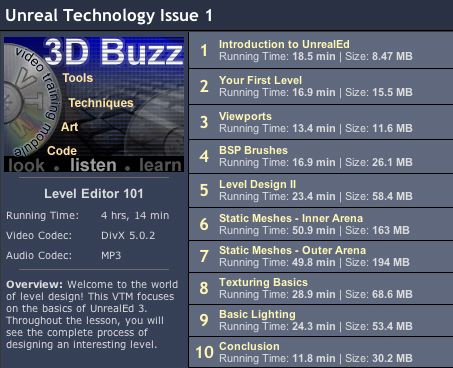
Basically the VTM or screencast of the UnrealEd that I have been using is a close up video of a computer screen showing the Unreal Editor being put through its paces with an ongoing, informative, commentry by a couple of dudes who really know their stuff. The following is a snapshot of the lessons for Module One for UnrealEd.
The beauty of the whole thing is that you can be running through the tutorial at the same time as working in UnrealEd. If you don’t understand a point in the commentary, simply rewind to play it again. Or you can pause the action, try it yourself, and then when you are ready, resume with the lecture. Bored with a particular topic? Fast forward over it.
One little gotcha with this approach? If you have thirty six students in a lab all trying to listen to their VTM’s at the same time, make sure that they all have headphones!!
Posted in Uncategorized | Comments Off